Reactivate a Suspended Subscription
If your Google Workspace subscription shows as Suspended in your Mercurie dashboard and the reason mentions Terms of Service or first-time setup, this is a one-time setup step Google requires directly from your Workspace admin. Mercurie can't accept the ToS on your behalf — Google only accepts it from a signed-in Workspace super-admin.
The fix takes about five minutes.
Who this page is for. Any Workspace subscription where Google issued a welcome email but no one ever signed in to
admin.google.comand accepted the Terms of Service. This is the most common "Suspended" reason on a brand-new Workspace account, and the only one that requires you to act rather than us.
Before you start
You'll need:
- The welcome email Google sent. Subject line begins with "[Action Required] You've signed up for a Google product". It was sent to the admin address on the subscription — usually the email you used when signing up with Mercurie, or the address your account manager set as the Workspace primary admin.
- A private / incognito browser window, or a browser profile that isn't already signed in to a different Google account. The activation link signs you in as the Workspace admin, and Google's account picker can get confused if you're already signed in elsewhere.
If you can't find the welcome email, scroll to Lost the welcome email? at the bottom of this page.
Step 1 — Open the activation link
Open the welcome email and click the activation button (it's labelled
something like Sign in or Get started). The link takes you to
accounts.google.com and lands on Google's "Welcome to your new account"
screen.
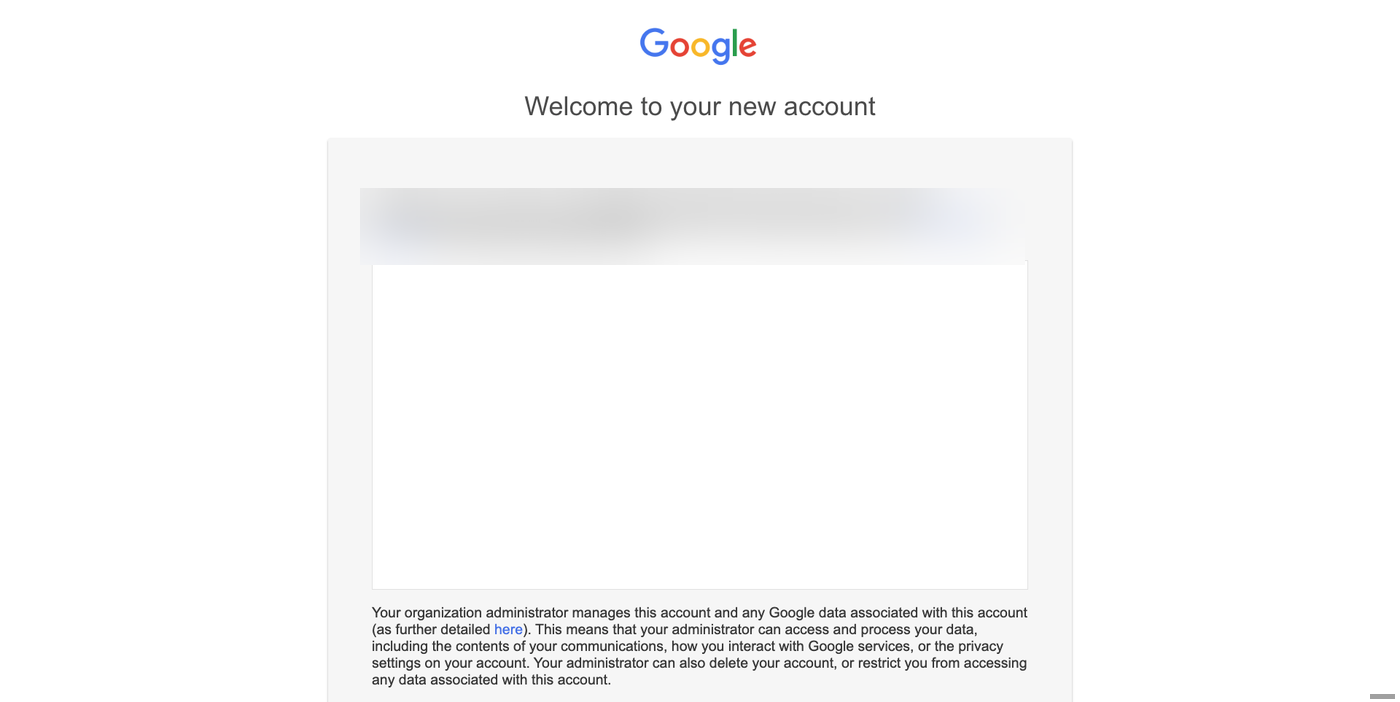
Tip. Right-click the button and open in an incognito / private window if you have other Google accounts signed in. This avoids the account picker entirely.
Step 2 — Accept Google's welcome screen
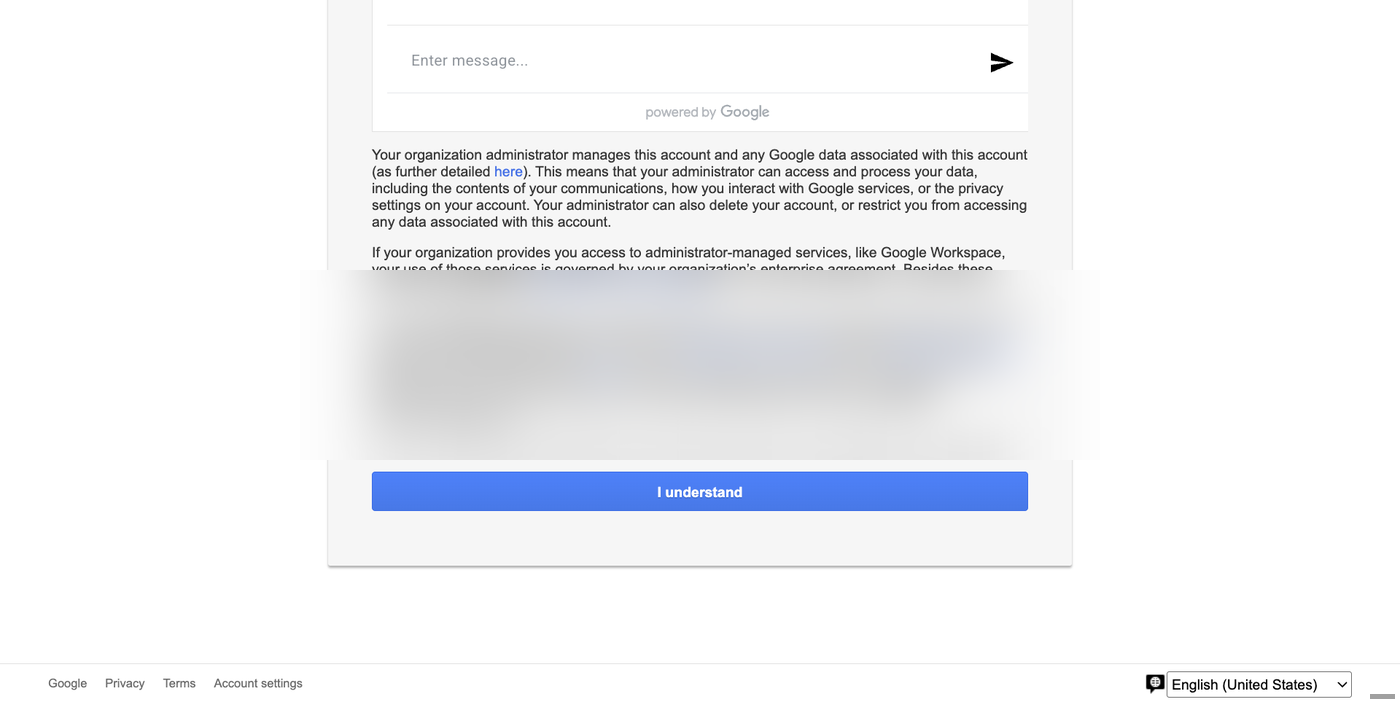
Read the welcome page (it explains that this is a managed Workspace account and that your administrator may see usage data). Scroll to the bottom and click I understand to continue.
Step 3 — Set the admin password
Google asks you to create a password for this admin account. Type it in both fields (Create password + Confirm password) and click Change password.
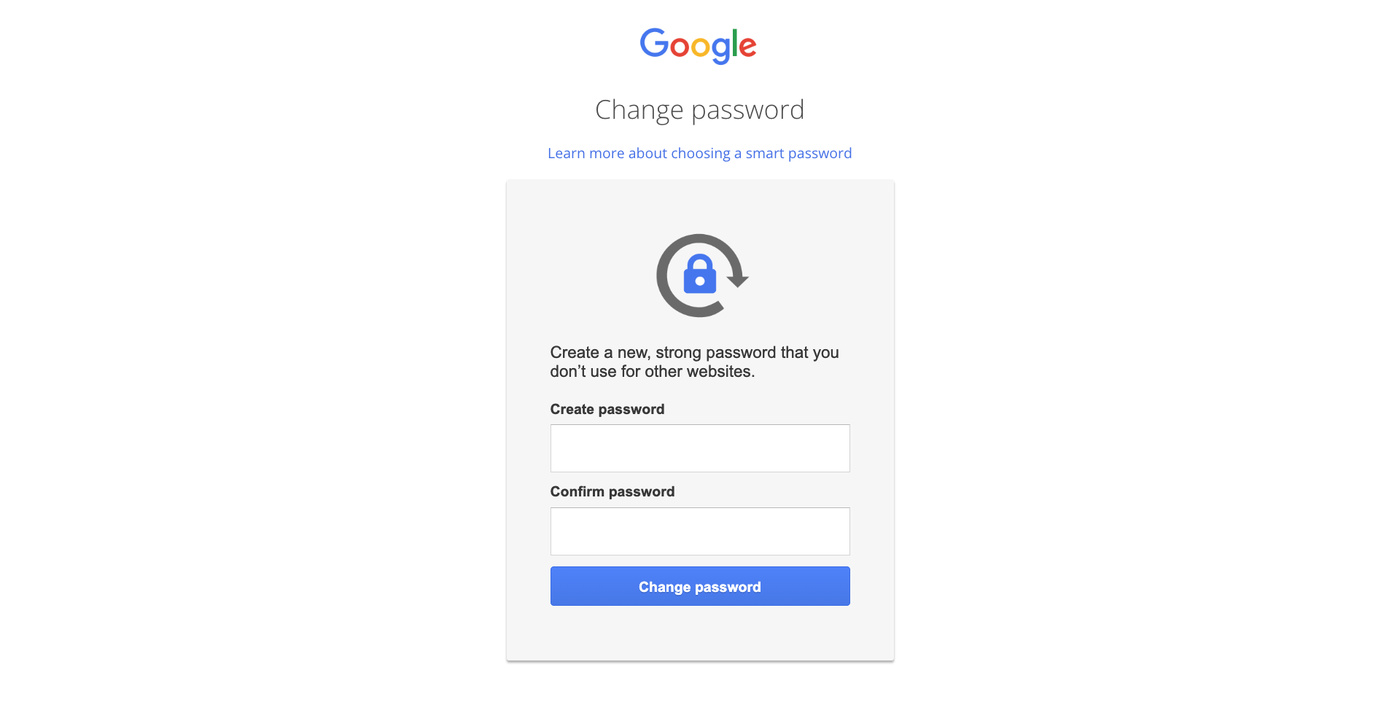
Pick a strong, stored password. This is the password for your Workspace super-admin. Treat it like the root credential it is — store it in your password manager, share it with at most one trusted co-admin, and turn on 2-Step Verification once you're in.
Step 4 — Accept the Workspace Terms of Service
After the password step, Google redirects you to a Terms of Service
page at admin.google.com. The header reads "Your reseller has placed
an order for Google Workspace …".
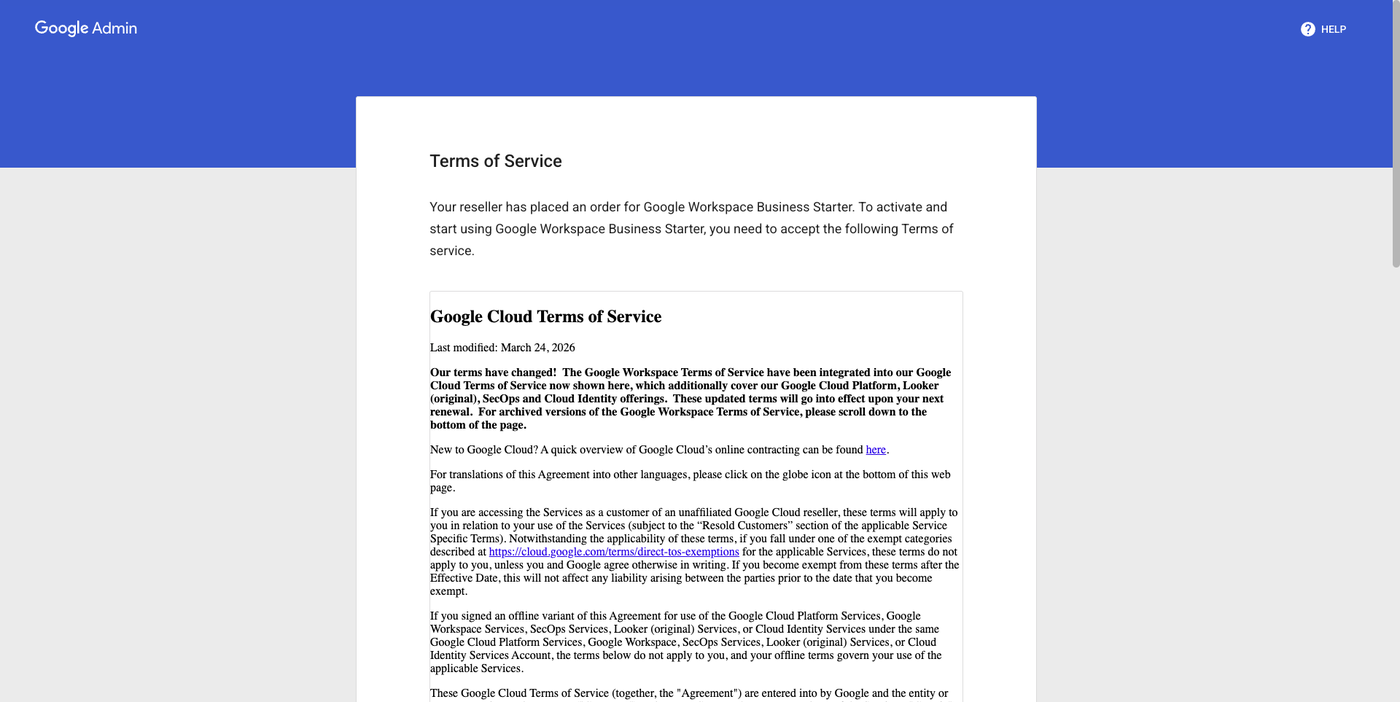
Scroll to the bottom of the ToS panel — the ACCEPT TERMS OF SERVICE button only enables once you've actually scrolled the agreement. Then click it.
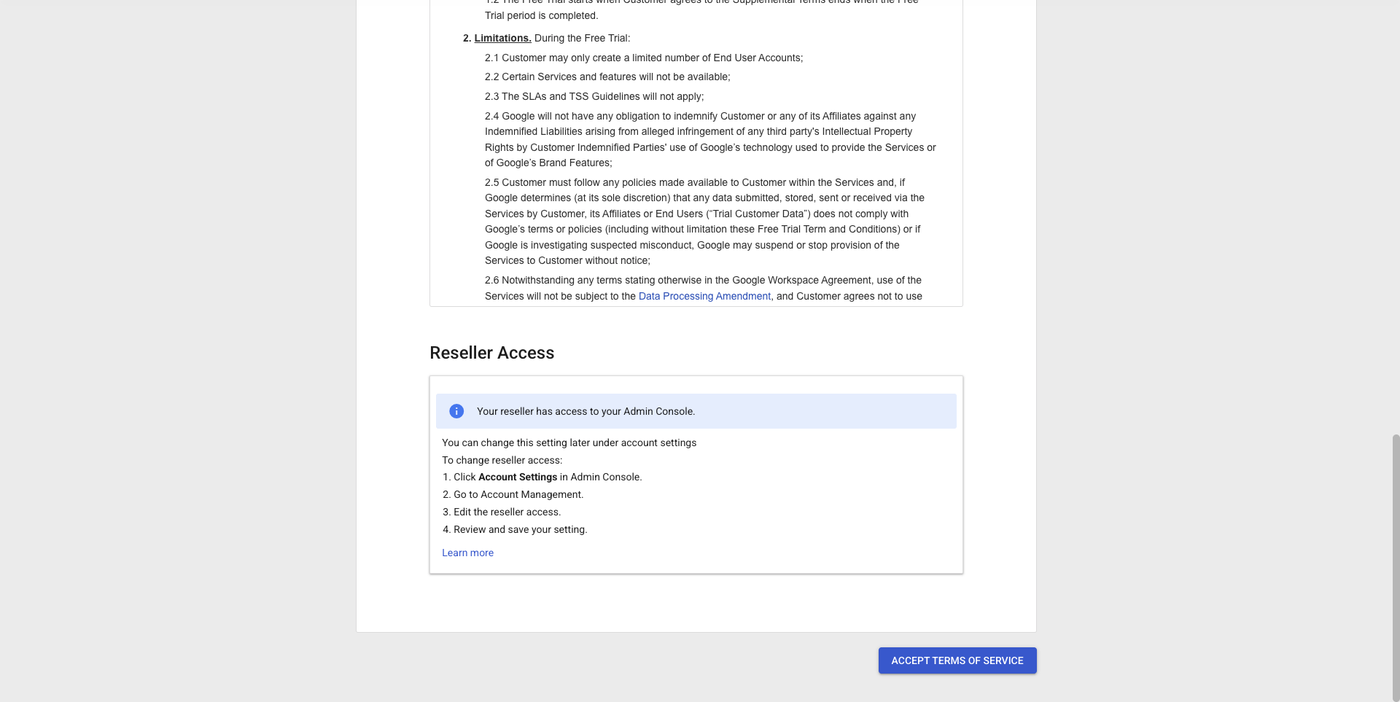
The "Reseller Access" panel here is normal — it's Google telling you that your reseller (Mercurie) has access to the Admin Console for billing and provisioning. You can change this later from Account Settings → Account Management in admin.google.com if you ever need to.
Step 5 — You're done
Google drops you on the Workspace admin console
(admin.google.com/u/0/ac/home) with a "Welcome, let's get set up"
banner. Your Workspace subscription reactivates automatically.
Refresh your Mercurie dashboard — the subscription status flips from Suspended to Active within a minute or two. No further action on your side, no need to ping support.
Lost the welcome email?
If you can't find Google's welcome email — it was deleted, sent to a mailbox you no longer have access to, or never arrived — open a support ticket with Mercurie and ask us to resend the Workspace activation link. Include:
- The Workspace primary domain (e.g.
acme.com) - The admin email address Google should send the new link to
- A short note explaining what happened to the original email
We can re-issue the activation email from the partner side; you then finish the same five steps above.
Common questions
Why can't Mercurie accept the ToS for me? Google requires the Workspace super-admin to accept it in person from a signed-in browser session. Resellers (including Mercurie) don't have a way to click "Accept" on your behalf — Google deliberately gates this on a real human admin signing in.
My subscription is Suspended for a different reason. This page covers the first-time-ToS case only. If your dashboard shows a different suspension reason — payment failure, KYC pending, policy violation, etc. — open a support ticket. Most other suspensions are resolved by us, not by you.
Can I do this from my phone? You can, but the password and ToS pages are easier to read on a laptop or desktop browser. If you only have a phone, request the desktop site in your browser and follow the same steps.
I accepted the ToS but the dashboard still says Suspended. Give it a couple of minutes — the status update is asynchronous. If it's still Suspended after 10 minutes, open a support ticket with your Workspace domain and we'll force a refresh from the partner side.
Need help?
The Support entry on the Mercurie dashboard sidebar opens a ticket with the ops team. Reactivation tickets are typically resolved same-hour during business hours.